Trouble Logging In? Let's Fix That
Can't get into your Ability Fix account? Don't worry – this happens to almost everyone at some point, and it's almost always a small, fixable mistake. Before you throw your phone across the room, run through this list. Odds are one of these is the culprit.
Most failed logins come down to a typo, an autofill mix-up, or the wrong email address – not a broken account. Work through the checks below in order and you'll usually be back in within a minute or two.
The Usual Suspects
Check these one by one – they cause the overwhelming majority of login problems.
-
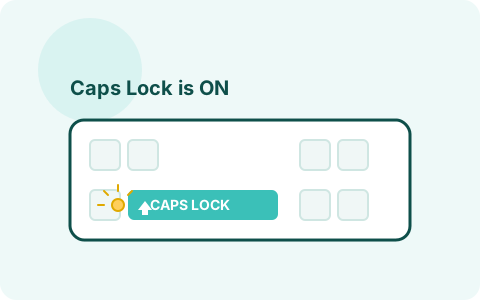
Caps Lock is on
Passwords are case-sensitive, so if Caps Lock snuck on without you noticing, every letter comes out wrong. Check your keyboard's Caps Lock indicator (or the on-screen keyboard indicator on mobile) before you try again.
-
Typos – especially with special characters
A misplaced letter, a transposed number, or hitting the wrong symbol key is the number one reason correct-seeming passwords get rejected. Type slowly and deliberately rather than relying on muscle memory.
-
Autofill or autocorrect is fighting you
On phones especially, autocorrect can “fix” a password into a real word, or autofill can drop in an old, outdated password from your keyboard's memory. If the password field is being autofilled, double-check it actually matches what you think your password is before submitting.
-
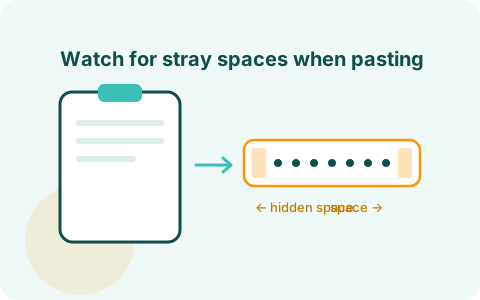
Extra spaces
It's easy to accidentally add a leading or trailing space when copying and pasting a password from a notes app or password manager. A stray space at the beginning or end will make an otherwise-correct password fail every time.
-
You changed your password and forgot
If you updated your password recently – on this app or anywhere else – make sure you're using the new one, not muscle-memory typing the old one.
-
Wrong email address
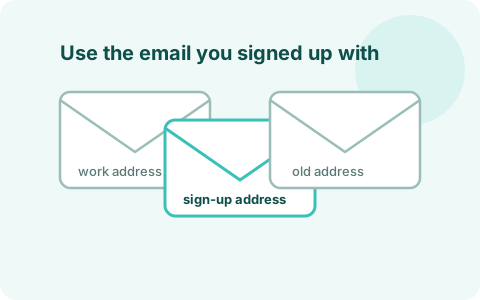
If you have multiple email addresses (work, personal, an old one), make sure you're logging in with the exact email you originally signed up with. This trips up more people than you'd think.
-
Too many failed attempts = temporary lockout
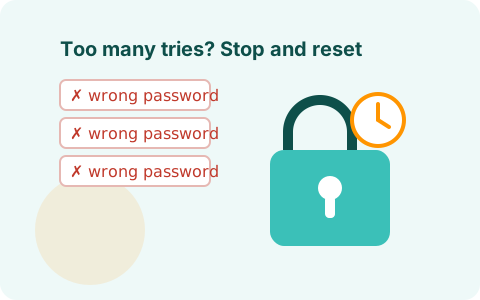
After several incorrect tries, some accounts lock automatically for a short period as a security measure. If this happens, stop guessing – wait a few minutes, or better yet, go straight to a password reset.
-
Weak internet connection or app glitch
Sometimes it's not you at all – it's a spotty Wi-Fi / cell connection or a temporary hiccup on our end. Try switching networks, restarting the app, or restarting your phone if the login screen seems stuck or unresponsive.
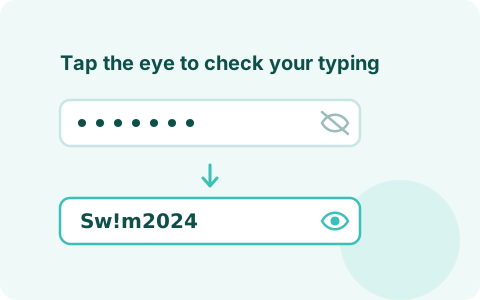
Tap the “eye” or “show password” icon in the password field (most apps, including ours, have one). Seeing what you actually typed – instead of a row of dots – makes it obvious if there's a typo before you hit submit.
How to Fix It – Step by Step
- Check Caps Lock and your keyboard language. Make sure it's off (or intentionally on, matching your original password) and you're on the right keyboard layout.
- Tap “Show Password” to see exactly what you've typed before submitting.
- Retype instead of relying on autofill. If autofill seems off, clear the field and type your password fresh.
- Double-check your email address for typos and confirm it's the one you signed up with.
- Watch for extra spaces if you're pasting from somewhere else.
- Still stuck after 2–3 careful tries? Stop guessing. Repeated failed attempts can lock your account temporarily. Use the password reset option below instead.
Resetting Your Password the Right Way
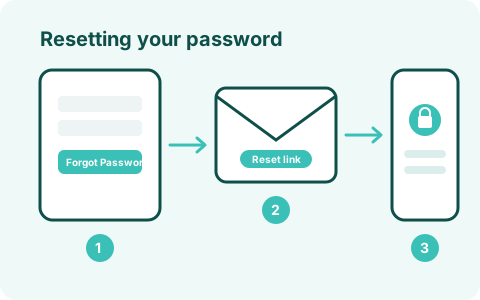
- From the login screen, tap Forgot Password?
- Enter the email address associated with your account.
- Check your inbox – and your spam / junk folder, where reset emails sometimes land – for a reset link.
- Follow the link and create a new password. We recommend:
- At least 12 characters
- A mix of upper- and lowercase letters, numbers, and a symbol
- Something you haven't used on other accounts – reusing passwords means one leaked site can put your other accounts at risk
- A memorable passphrase instead of a jumble of random characters – it's easier to type correctly and just as secure when it's long enough
- Log back in with your new password.
- Wait a couple of minutes – delivery isn't always instant.
- Check your spam / junk / promotions folders.
- Confirm you entered the same email you originally signed up with.
- If it still hasn't arrived after 10–15 minutes, contact us using the button below and we'll sort it out.
A Few Habits That Prevent This Altogether
- Use a password manager. It remembers and autofills your password correctly every time, so you never have to type it (or misremember it) again.
- Don't jot your password on a sticky note or in an unprotected notes app. If you must write it down, store it somewhere secure.
- Don't reuse the same password everywhere. One breach elsewhere shouldn't put your Ability Fix account at risk too.
Still Can't Get In?
If you've tried everything above and you're still locked out, we're happy to help – no judgment, this happens to the best of us.
Email our support team
The link opens your email app with our support address
(support@abilityfix.com) already filled in, along with a subject line and a short
template – just add your account email and describe what's happening, and we'll get back to
you as soon as we can.